To change the contents of our site, just use the
Admin Panel
If it’s the first time you visit it you will be asked to log-in. After successful login, you should see something like the following:
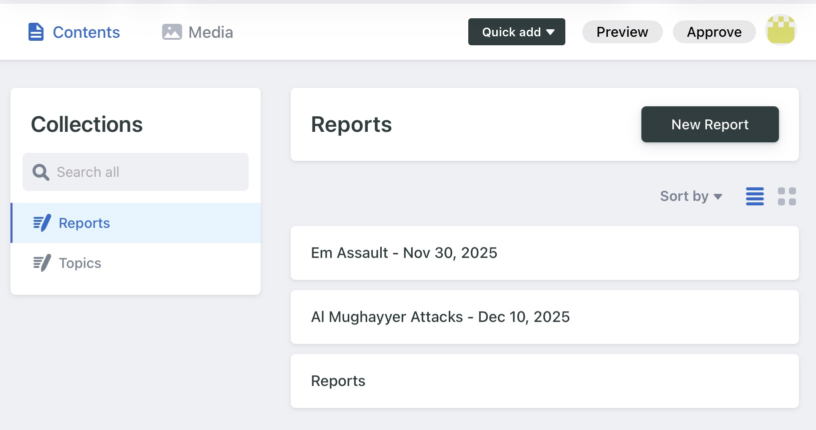
Most of our site’s web pages can be edited from this panel. Just find the page you want to edit by choosing a collection on the left, and then choosing the entry for the page in question on the right. (A note here: because of some shortcomings in the technology used to make this panel, the parent page for some collections are shown as an element of the collection. Eg there is a “Reports” post in the “Reports” collection. Other than the strange location, it all works as you would expect. Just don’t delete those please!)
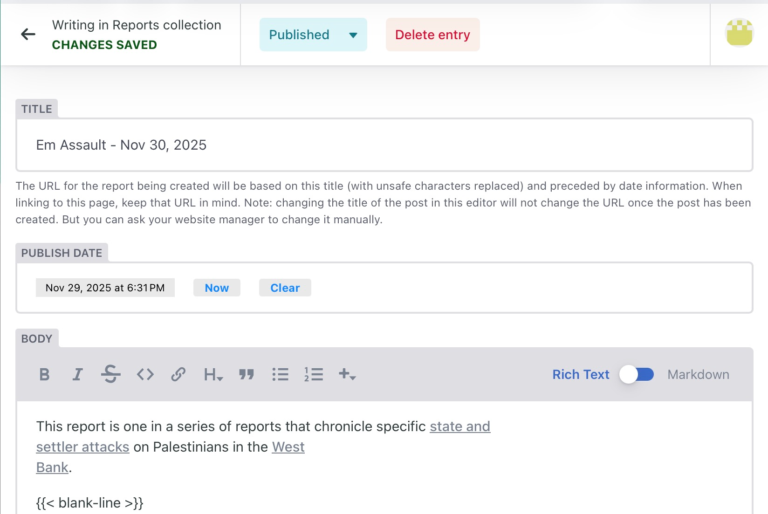
You will be shown a form that lets you edit the content of the page. You mainly should be changing the title and body fields. As soon as you change anything, the top of the form will change to let you know you have unsaved changes.

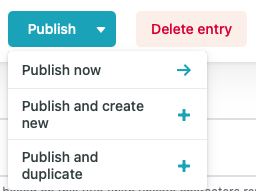
If you don’t like the changes you’ve made, click on the left-arrow, and your changes will be discarded. If you like your changes, use the Publish > Publish Now command at the top of the screen. This will save your changes to the cloud, ready for the next time someone asks for a preview or approves changes.
The preview version of the website is what you see at edit.palestine-issues.org - the website you are using now. You may need to hit ask your browser to refresh the page to see the changes. But other than the red banner, the website title in that banner, and the existence of the “Admin” menu item, it should be an exact preview of what the official website will look like when the changes have been pushed to it.
The body (referring to the main body) of content on each page, is displayed in a user-friendly “Rich-Text” view. But really, that is being built from an underlying “Markdown” text. You can use the toggle at the top-right of the field to switch the view between these two forms. Sometimes the “Rich-Text” view gets confused, so it’s good to have the option of seeing the underlying Markdown data so you can repair it.
When you want to see the changes you’ve published to the cloud on an actual website, you can use the “Preview” button at the top-right of the admin panel to rebuild the edit.palestine-issues.org website with your changes.
When you are happy with the results there, then hit the “Approve” button, and the official website at palestine-issues.org will be updated with the same changes.
There are various changes that cannot be made to the website from the Admin Panel. For those, please contact Ra. Of course, if you run into any technical issues, you can also let him know.